
Accept via a shared link
If someone sent you a VERA connection link over Slack, Teams, WhatsApp, or any other channel, here's how to accept it.
Why a link instead of an email?
When someone invites you to connect on VERA, they can either have VERA send you an invitation email directly, or they can copy the invitation link and share it with you themselves — over Slack, Microsoft Teams, WhatsApp, LinkedIn, or any other channel they prefer.
Both routes lead to the same outcome. This page covers what to do when you've received the link manually.
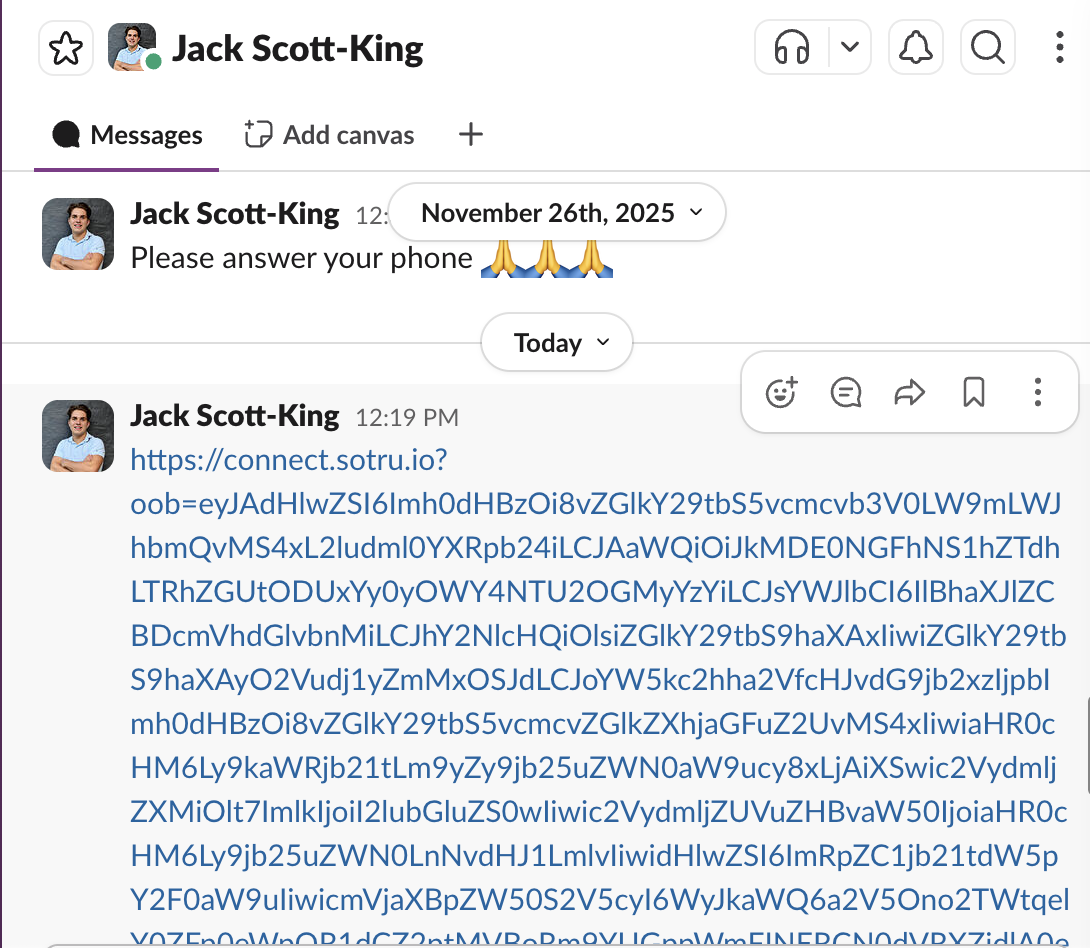
Accept the connection
Copy the invitation link
Select and copy the full VERA link from the message. It will start with https://connect.sotru.io.
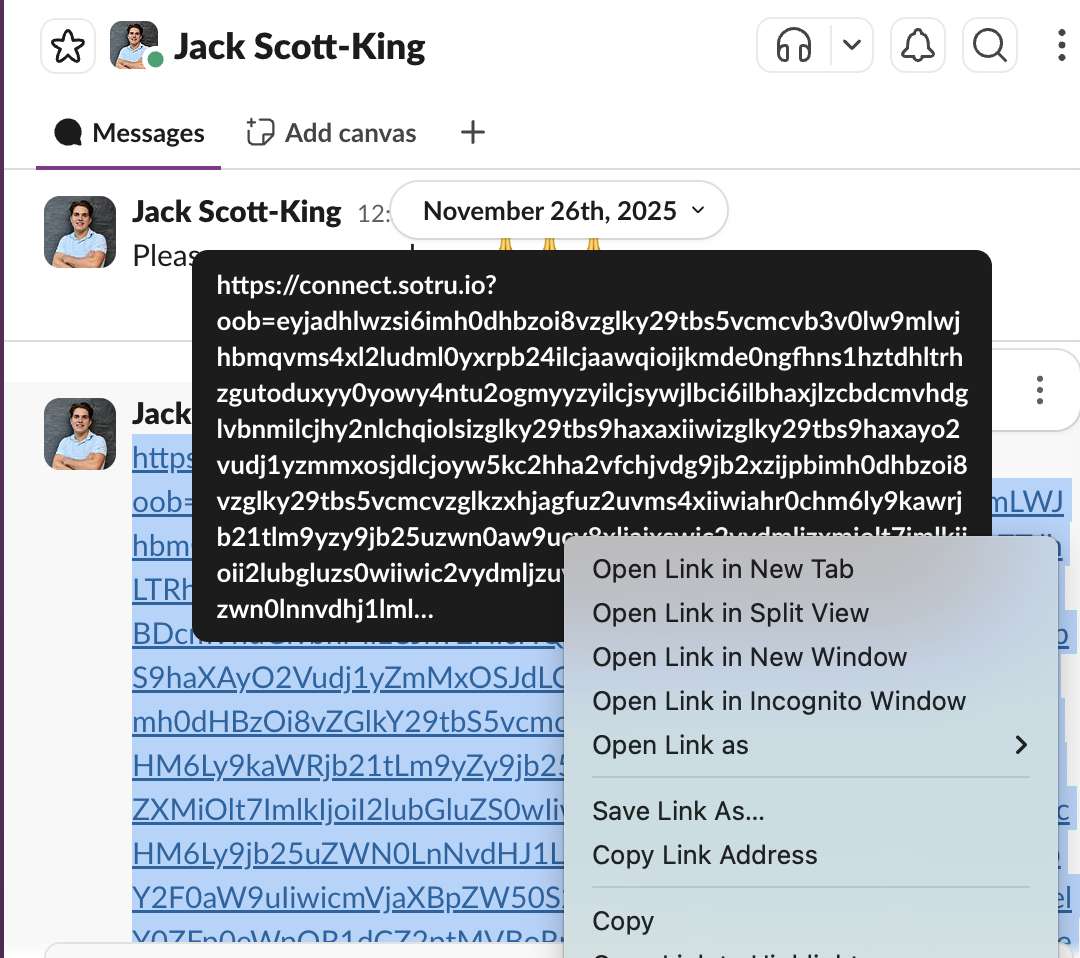
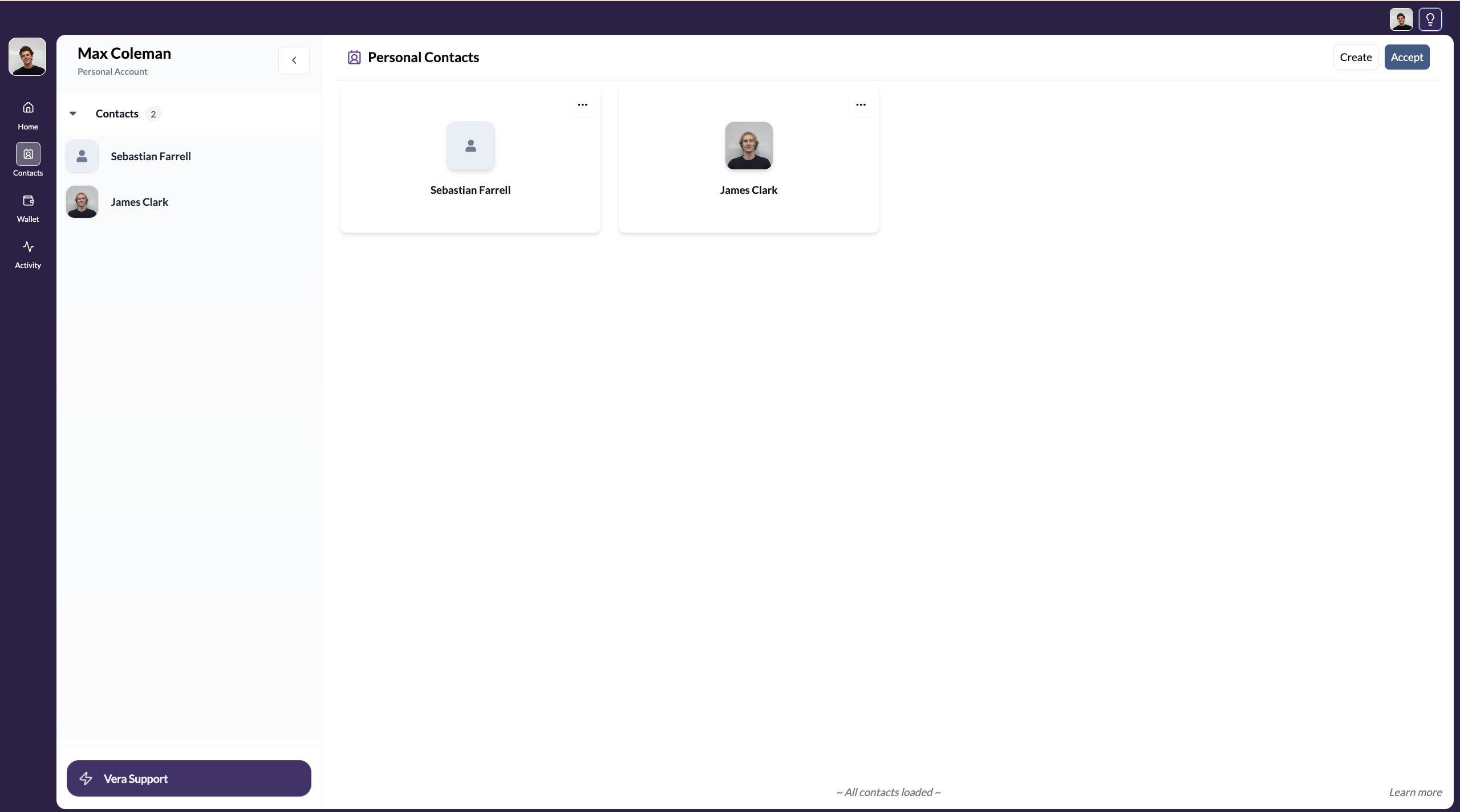
Sign into VERA and click the accept button
Within your VERA account, navigate to contacts and click accept.
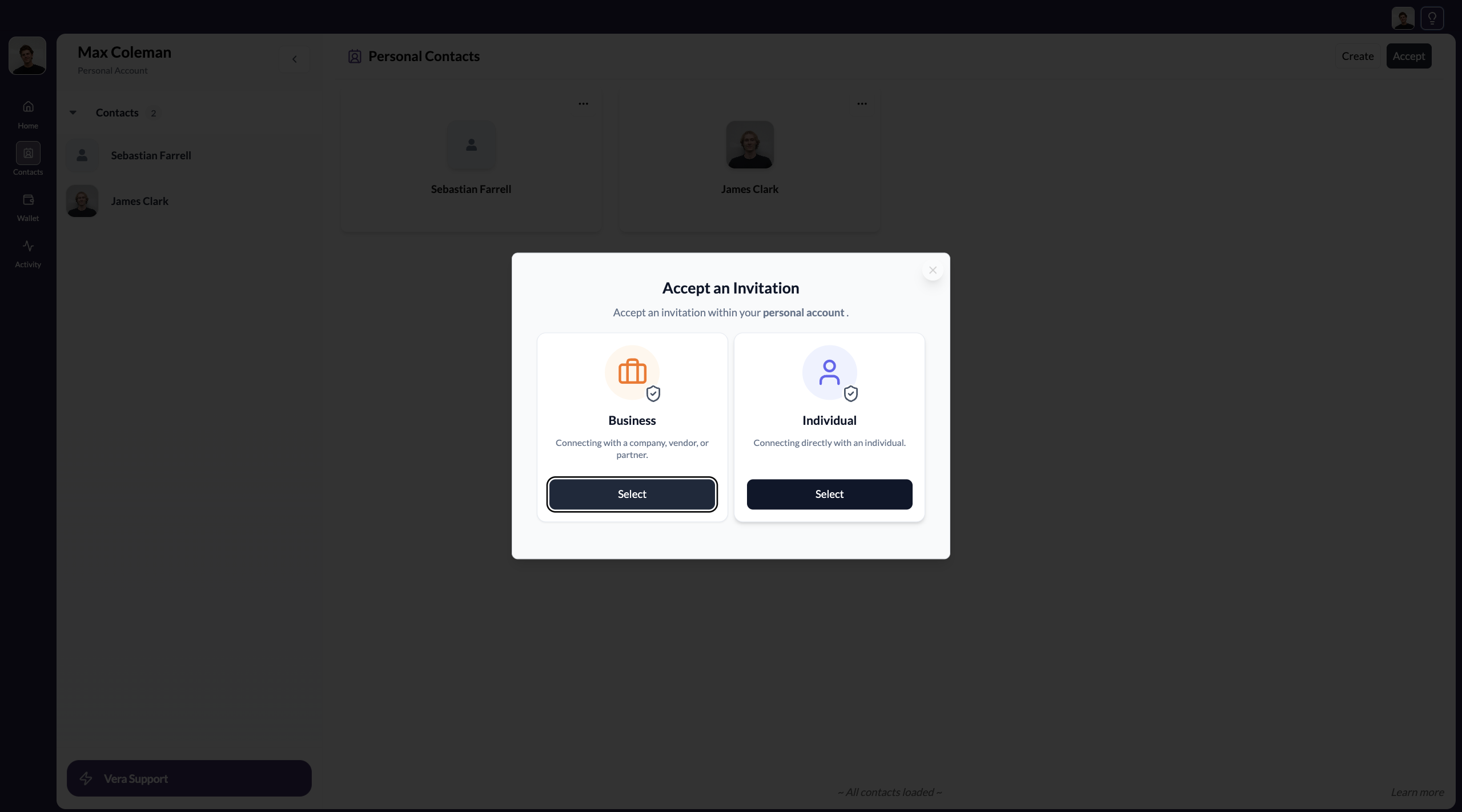
Select which type of account you're accepting an invite from
When accepting the connection invitation, you need to select whether you are connecting with an individual or business. Select accordingly.
Name the contact and accept
Enter the name you'd like this contact to appear under in your directory. You then need to paste the invitation link into the invitation link text area.
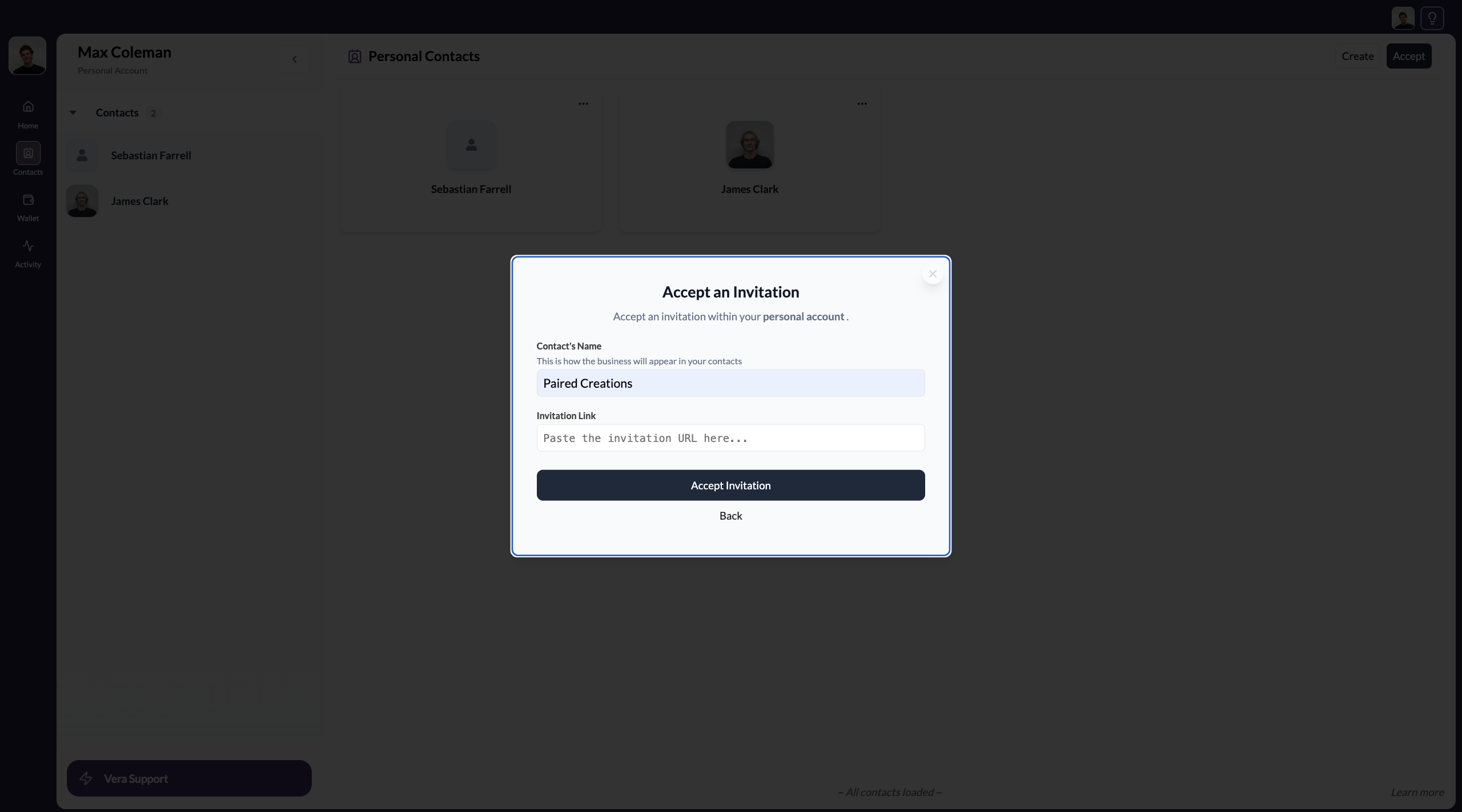
Click Accept Connection to confirm.
You're connected
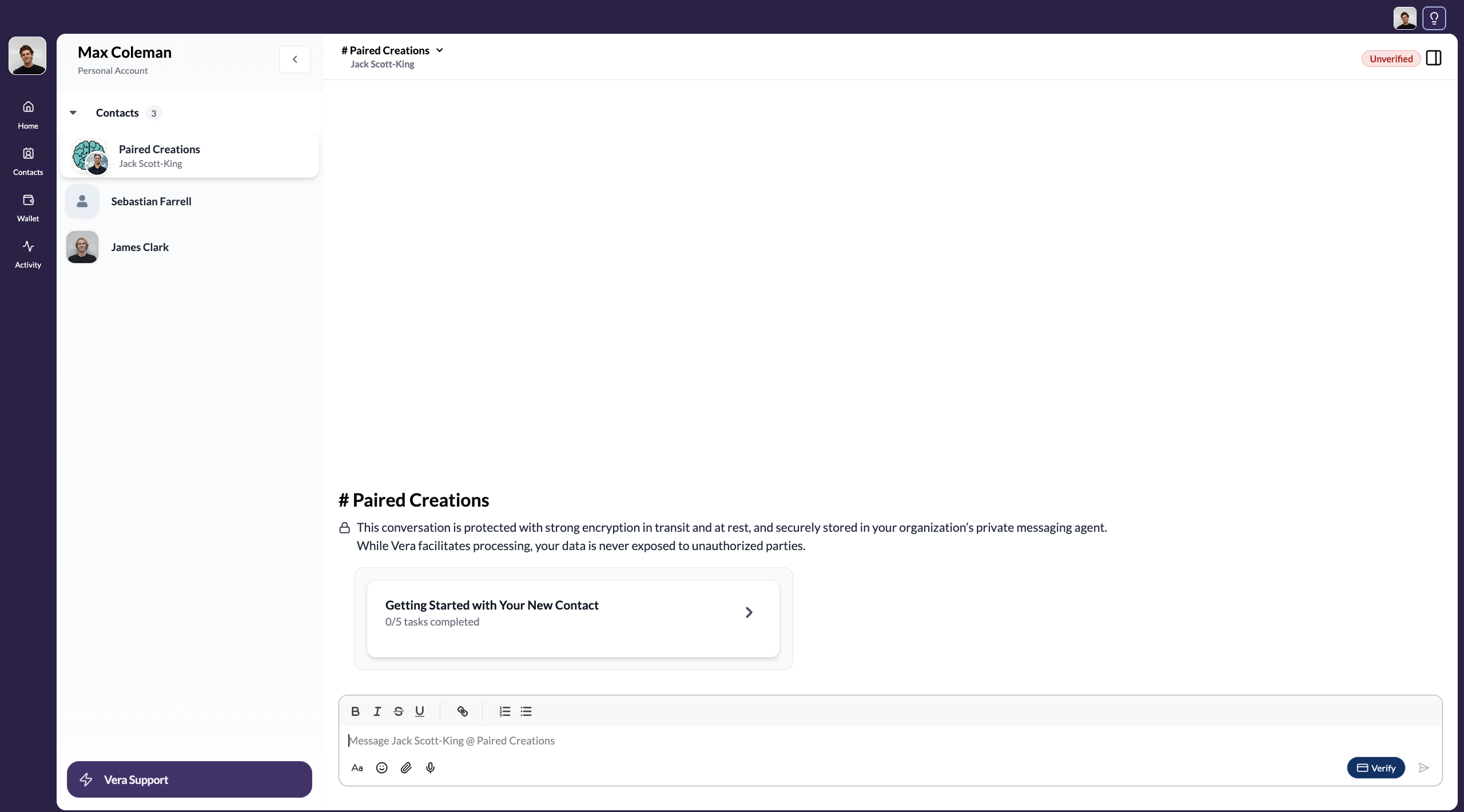
Once accepted, both parties appear in each other's contacts lists and a secure, encrypted channel is established between you.
Always check that the link starts with https://connect.sotru.io before opening it. VERA will never send connection links from any other domain.
What happens next
Once connected:
- The contact appears in your Contacts list
- An encrypted channel is opened — you can send a message right away