
Account security & recovery
Manage your vault password, review active sessions, and know what to do if you ever get locked out of your account.
Access security settings
Open Settings from the sidebar
Click your profile icon or the Settings option at the bottom of the sidebar.
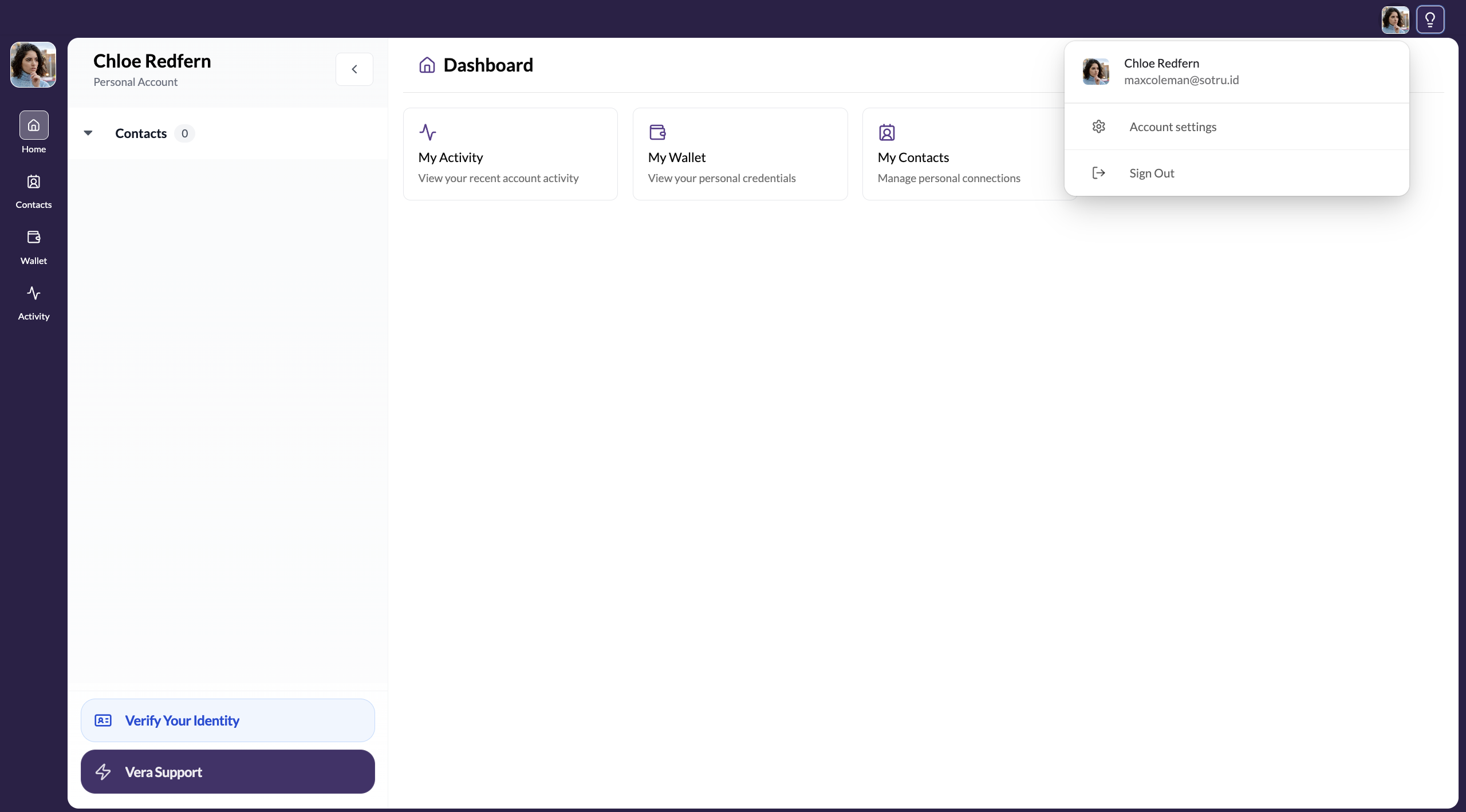
Go to the Security tab
Click Security in the settings navigation. You'll see options for password management, active sessions, and recovery.
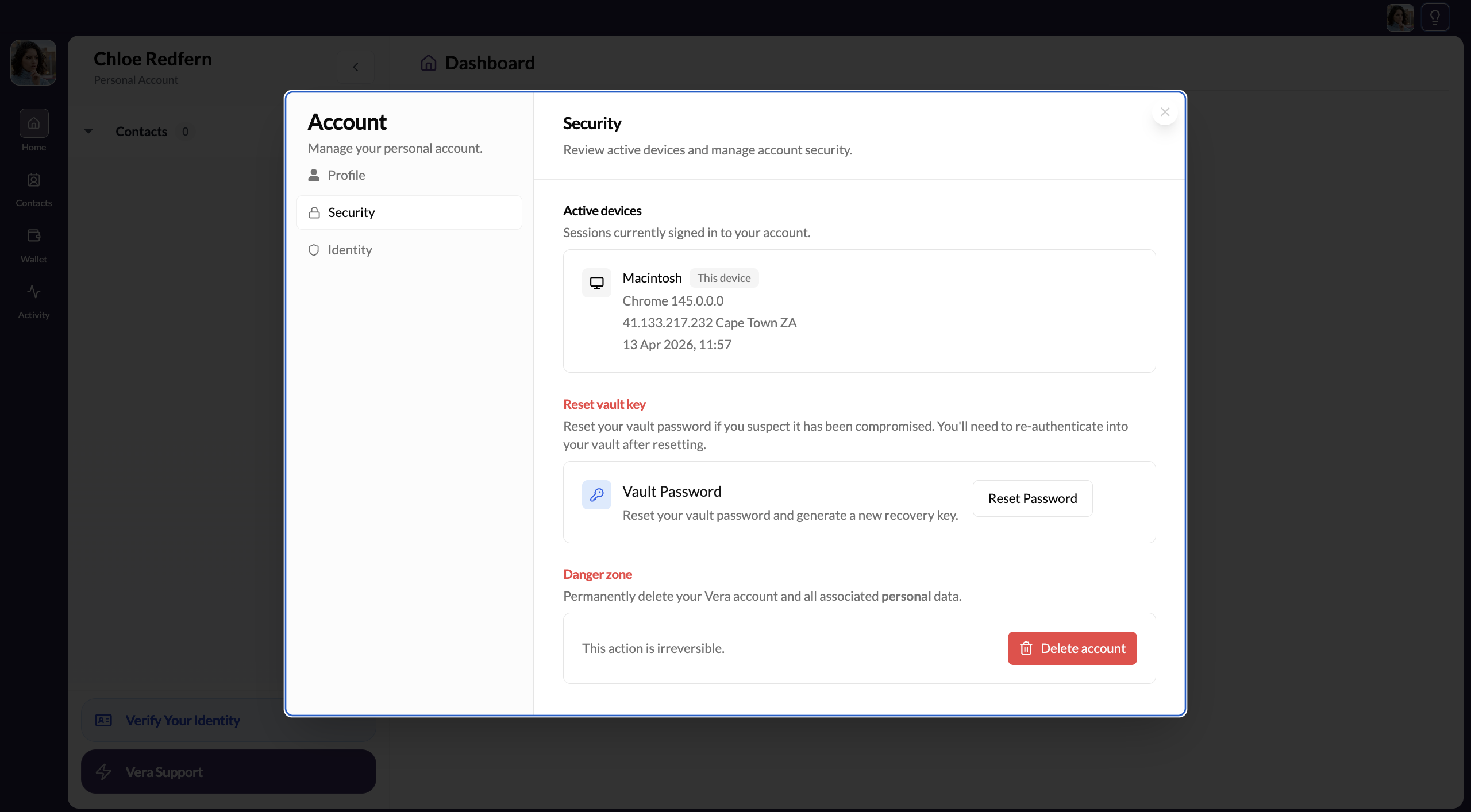
Active sessions and devices
The Security tab shows all devices and browsers where your account is currently active. Each entry shows:
- Device type and browser
- Location (approximate, based on IP)
- Last active time
Click Revoke next to any session to sign that device out immediately. Use this if you see a session you don't recognise.
Reset your vault password
Click Reset Password
In the Security tab, click Reset vault password. You'll be prompted to verify your identity.
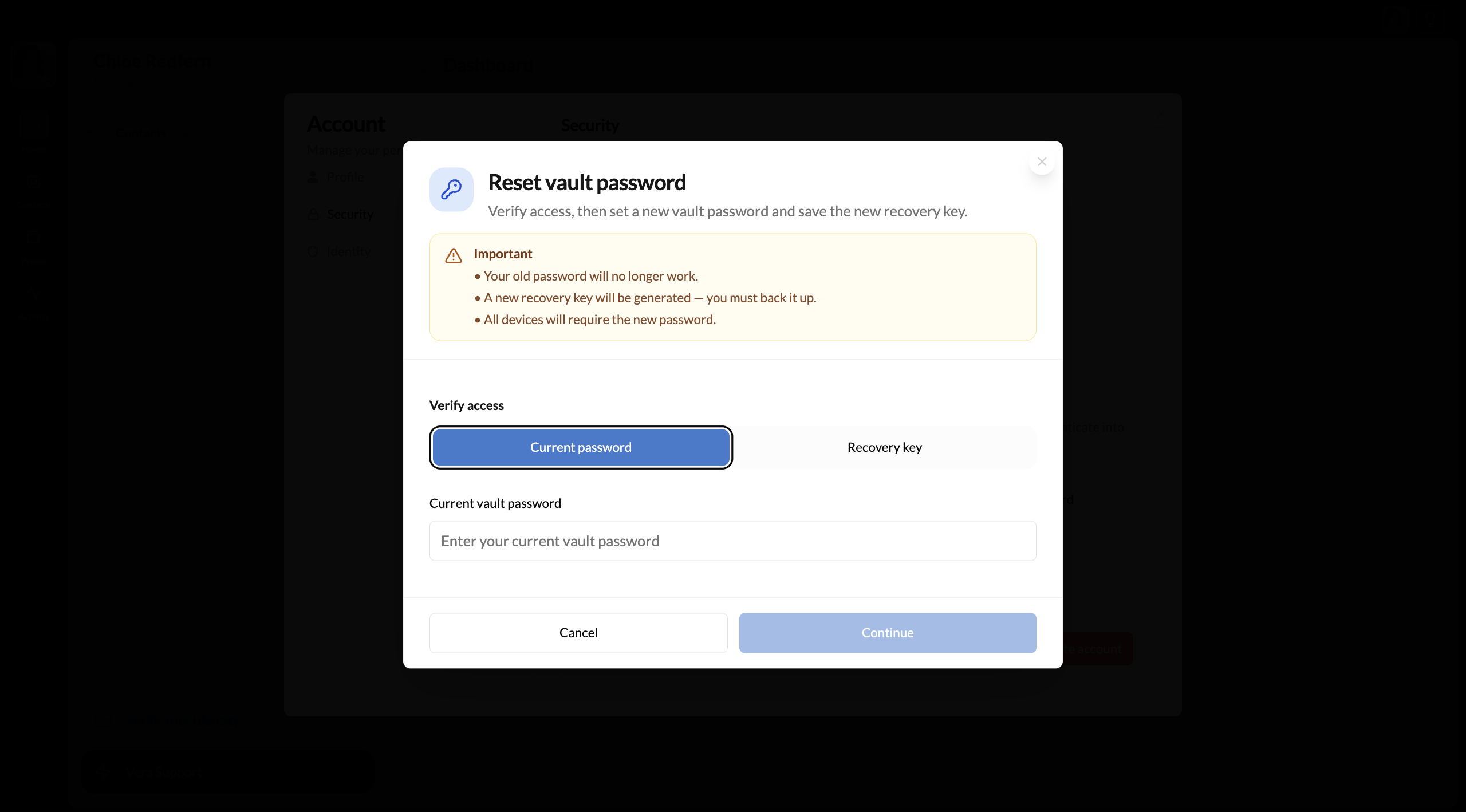
Verify with your current password or recovery key
- If you know your current vault password: enter it to confirm your identity, then set your new password
- If you've forgotten your vault password: enter your 12-word recovery key instead
Set your new vault password
Choose a strong new password. Enter it twice to confirm.
Save your new recovery key
After resetting, VERA generates a new 12-word recovery key. Save it immediately. Your old recovery key is invalidated.
Resetting your vault password invalidates all other active sessions. Anyone else with access to your account (e.g., on a shared device) will be signed out immediately. Save your new recovery key before dismissing this screen — you won't see it again.
If you're completely locked out
If you've lost both your vault password and your recovery key:
- Your vault contents are permanently inaccessible. VERA has no way to recover them.
- You can still create a new VERA account with the same email, but you'll lose all encrypted data from the old vault.
- Contact VERA Support before taking this step — support may be able to help identify if there's an alternative.