
Verify your business identity
Business verification confirms your company is a registered South African entity and that you're an authorised director. The process takes about 5 minutes and includes a personal identity check.
What business verification does
Business verification (KYB) does three things: it confirms your company is registered and active on CIPC (the Companies and Intellectual Property Commission), it confirms you are listed as a director of that company on CIPC records, and it verifies your personal identity through a document scan and liveness check to prove you are who you say you are.
Once complete, a Business Identity Credential is issued to your organisation's wallet. This credential contains your company's commercial name, registration number, commercial type, commercial status, registration date, tax number, and country of registration — all verified against CIPC records. Contacts can request this credential to verify your business through the Verify button in chat (see Verify your connections).
The Companies and Intellectual Property Commission is South Africa's official company registry. All registered companies, close corporations, and co-operatives have their details recorded on CIPC, including director information. VERA verifies your business details directly against this registry.
Who can complete this
You must be an authorised director. The person completing the verification must be a registered director of the company as listed on CIPC. If you're not a director, you'll need to ask one of your directors to complete the process. When you reach the first step, you'll be asked to confirm your role. If you select "I'm not a director", VERA will prompt you to onboard a director to complete it instead.
South African registered companies only (for now). Business verification currently works for entities registered with CIPC. This includes private companies (Pty Ltd), public companies, non-profit companies (NPC), and close corporations (CC). Trusts are not currently supported as they are not registered on CIPC. VERA plans to expand to other jurisdictions and entity types.
What you'll need
Have these ready before starting: your South African ID document (smart card or green ID book) or passport, your 13-digit SA identity number, your company registration number, and a device with a working camera for the liveness check. Good lighting helps. The whole process takes about 5 minutes.
Start business verification
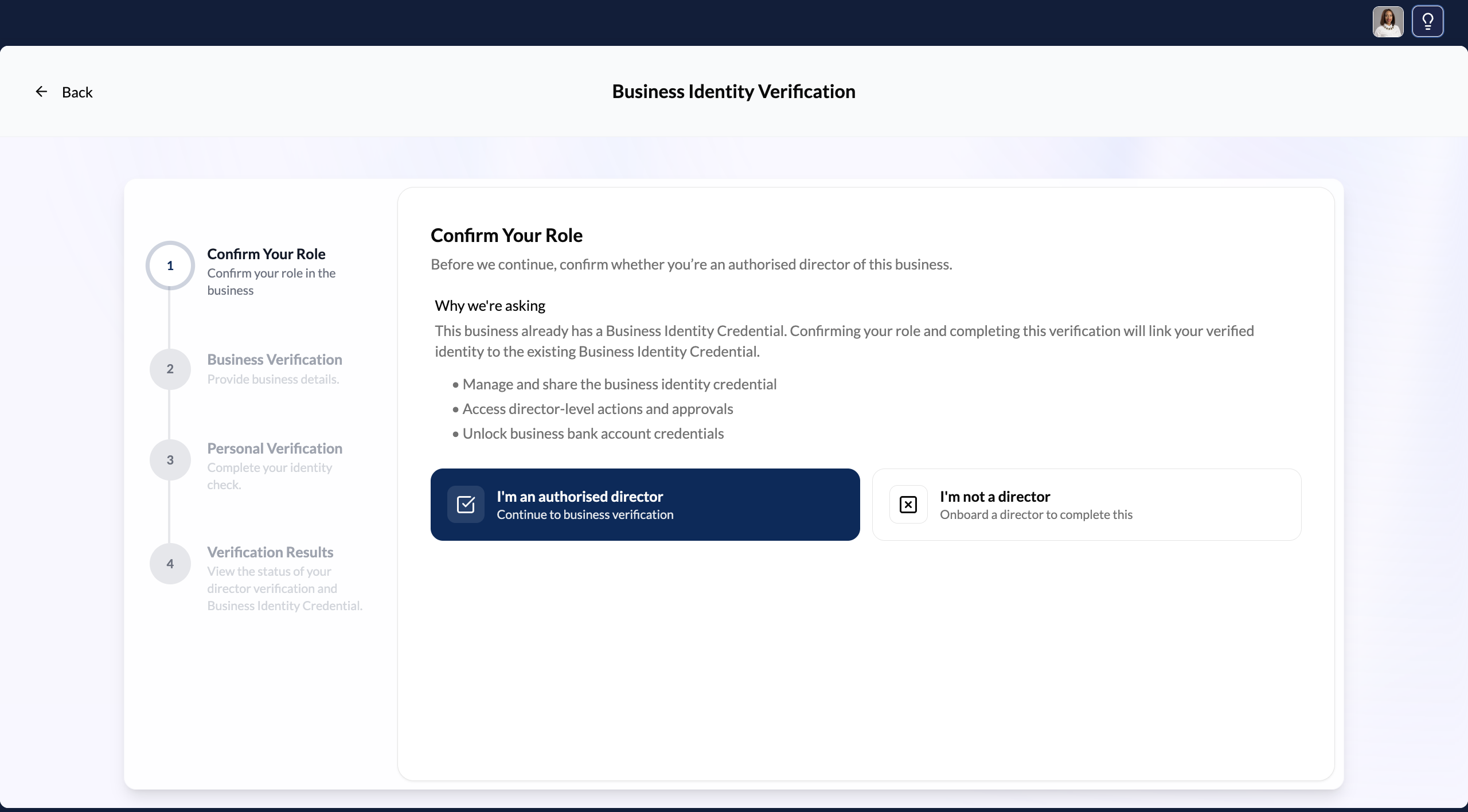
Confirm your role
Click Verify Business Identity at the bottom of the left sidebar, or from the welcome modal. The first screen asks you to confirm whether you're an authorised director. The left-side stepper shows the 4 stages: Confirm Your Role → Business Verification → Personal Verification → Verification Results.
Click I'm an authorised director to continue. If you're not a director, click "I'm not a director" to be guided through onboarding a director instead.
Enter business and personal details
Enter your Residency status, your Identification Number (13-digit SA ID number), and your Company registration number. Accept the Privacy Policy and Terms of Use. The Privacy Policy confirms data is used only for verification and credential issuance. The Terms of Use confirm you're authorised to act for this business.
Click Start business verification. VERA checks against CIPC that your ID number is listed as a director of the company with that registration number.
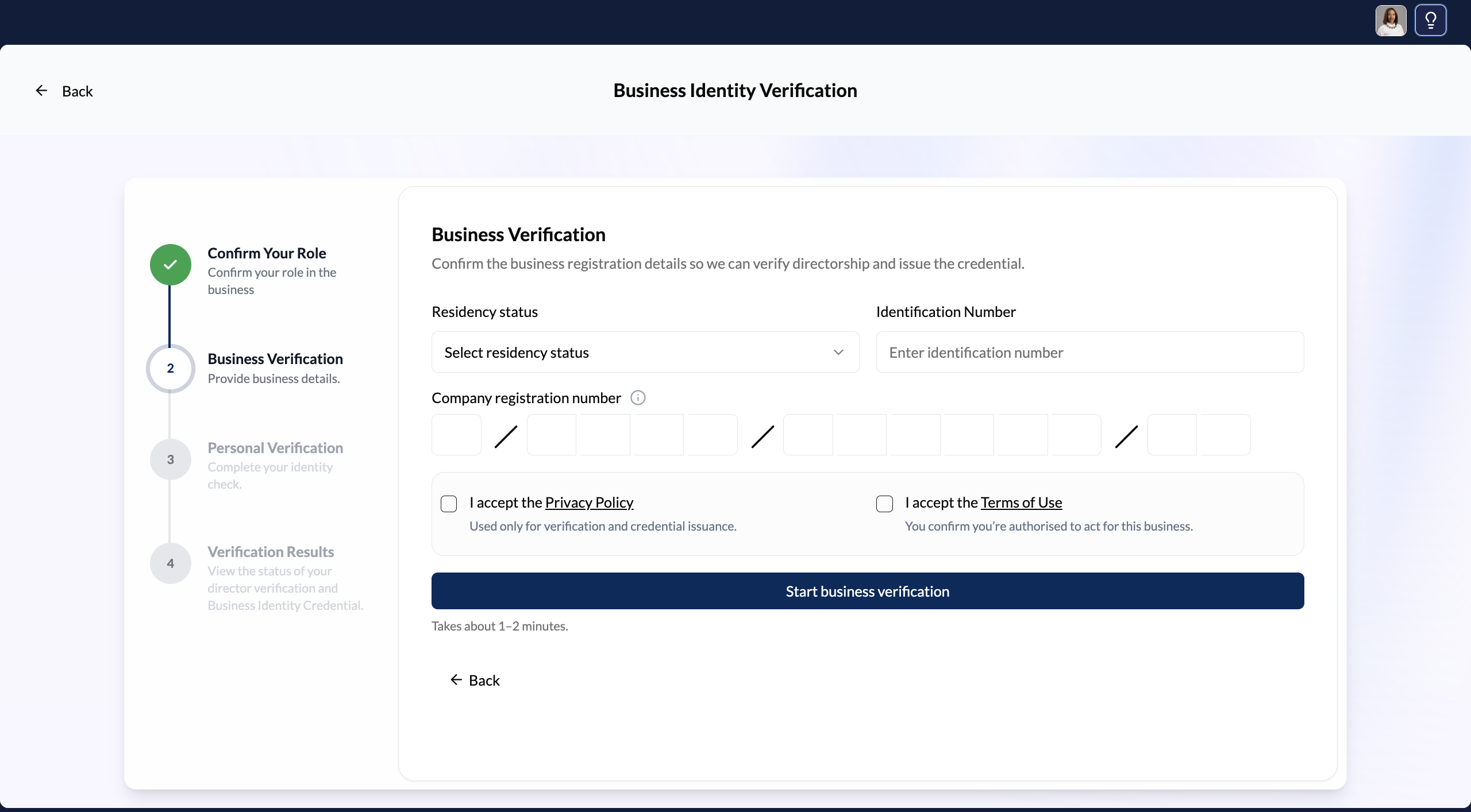
Your identification number must match a registered director on CIPC for that company registration number. If the details don't match — for example, if you're listed under a different ID number or you're not listed as a director — the verification will fail.
Complete the identity check
After your directorship is confirmed against CIPC, you need to verify your personal identity. This proves that you — the person sitting at the computer — are the director whose ID number you entered. If you've already completed personal verification on VERA, you'll automatically be verified and can receive your credential immediately.
Start the identity verification
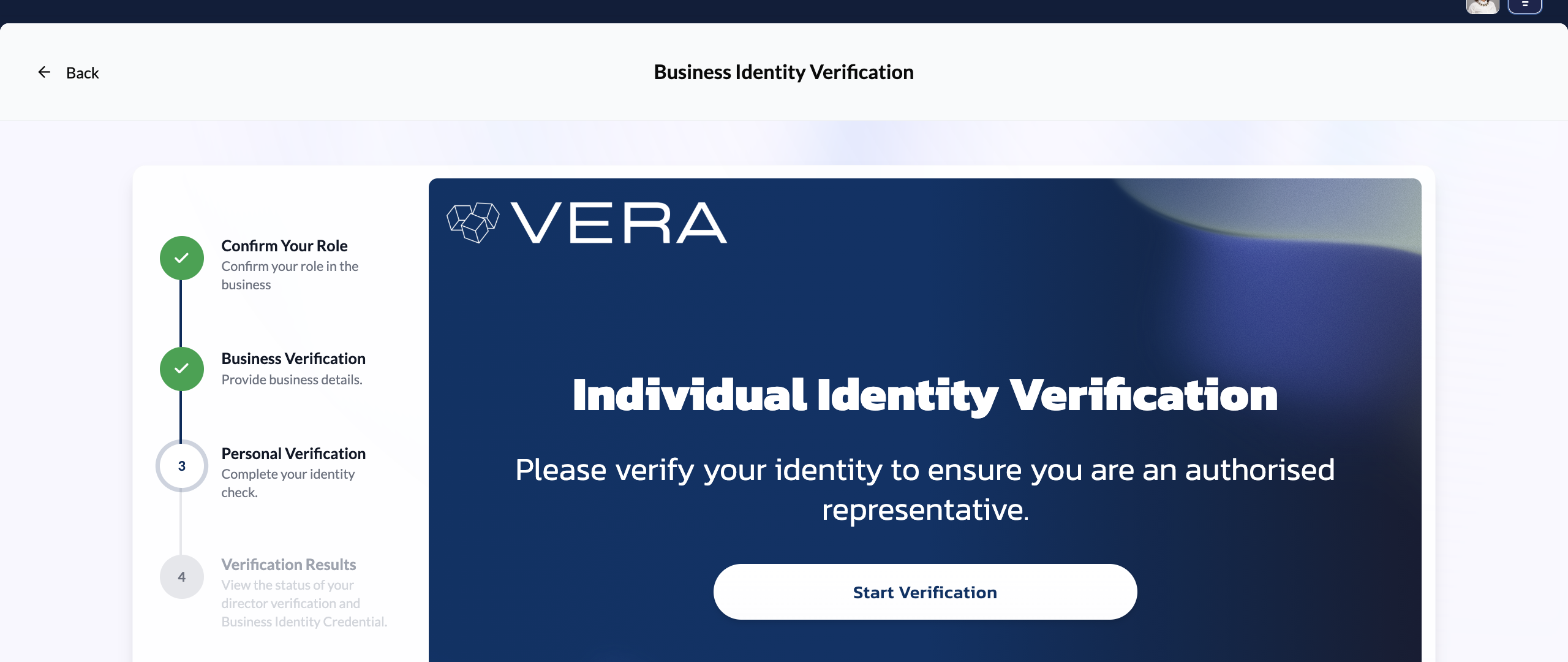
A VERA-branded screen appears prompting you to begin the Individual Identity Verification. Click Start Verification.
Accept Terms and Conditions
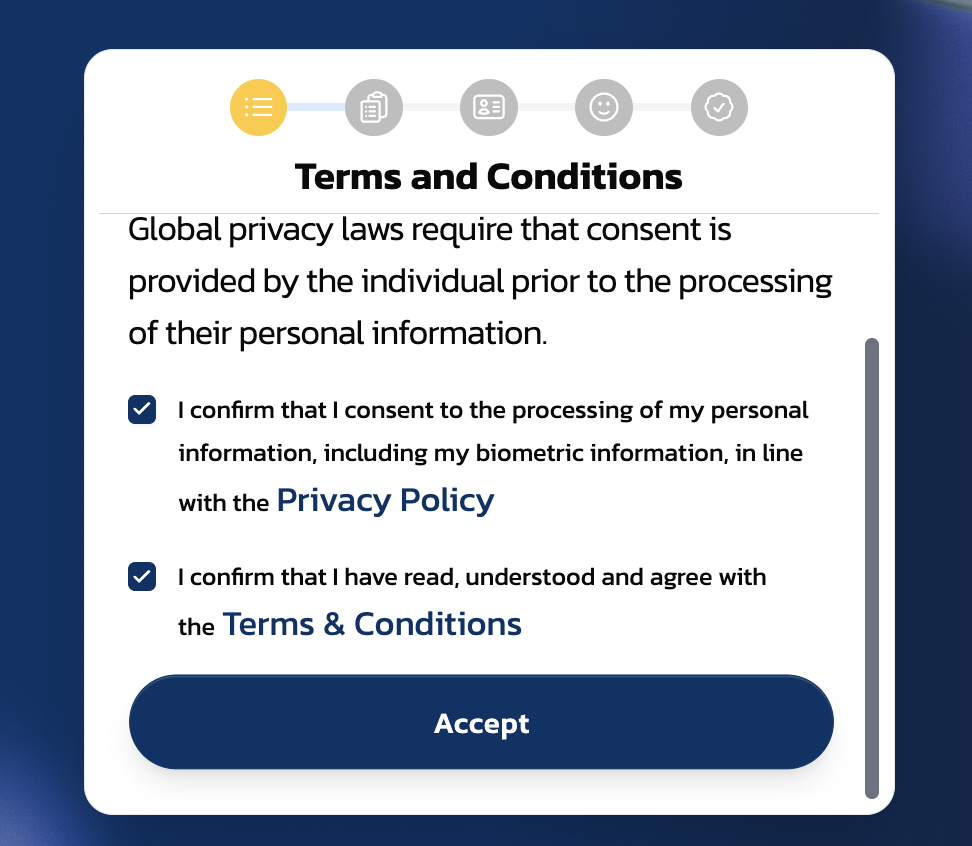
Consent to the processing of your personal information (including biometric data) under the Privacy Policy, and accept the Terms and Conditions. Click Accept.
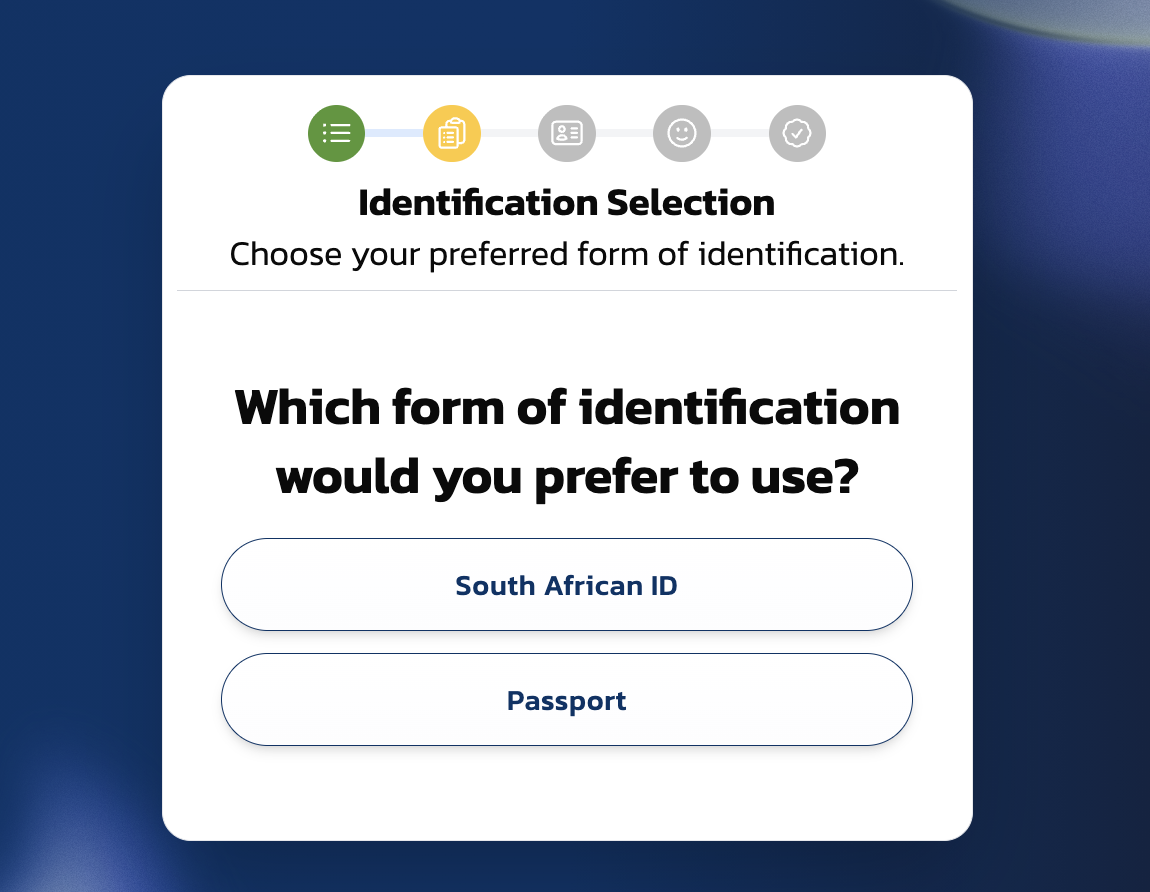
Choose your ID type
Select South African ID or Passport.
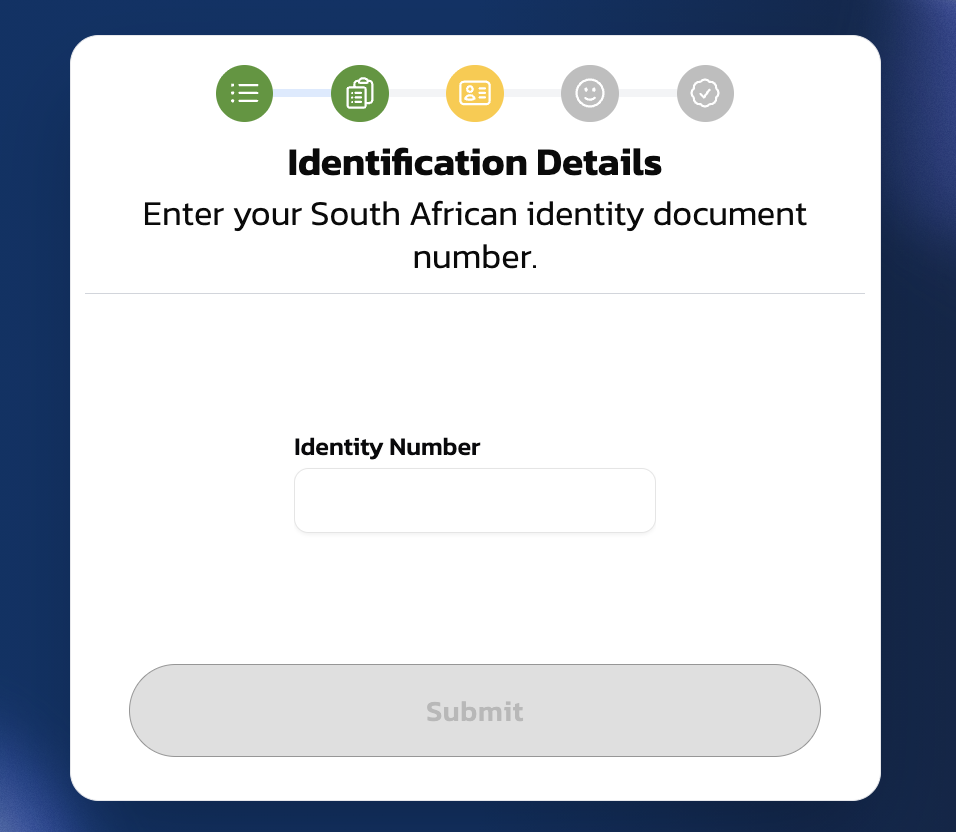
Enter your identity number
If you selected South African ID, enter your 13-digit identity number and click Submit.
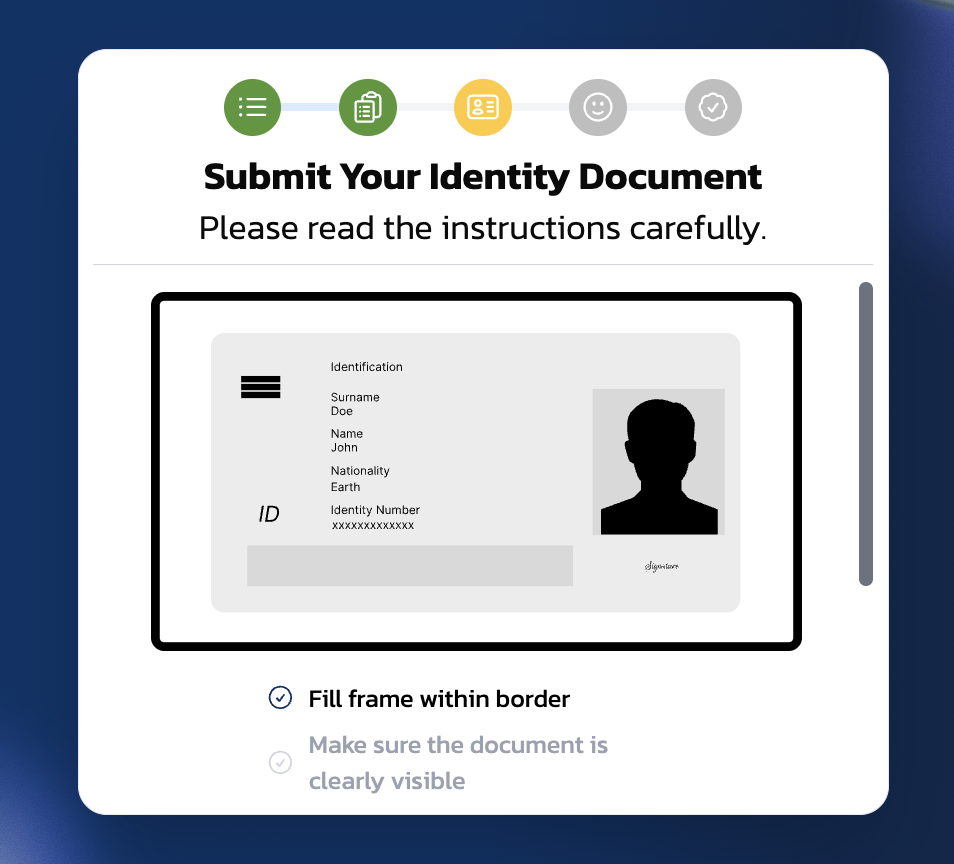
Submit your identity document
The screen shows what a valid ID submission looks like: the document should fill the frame within the border and be clearly visible.
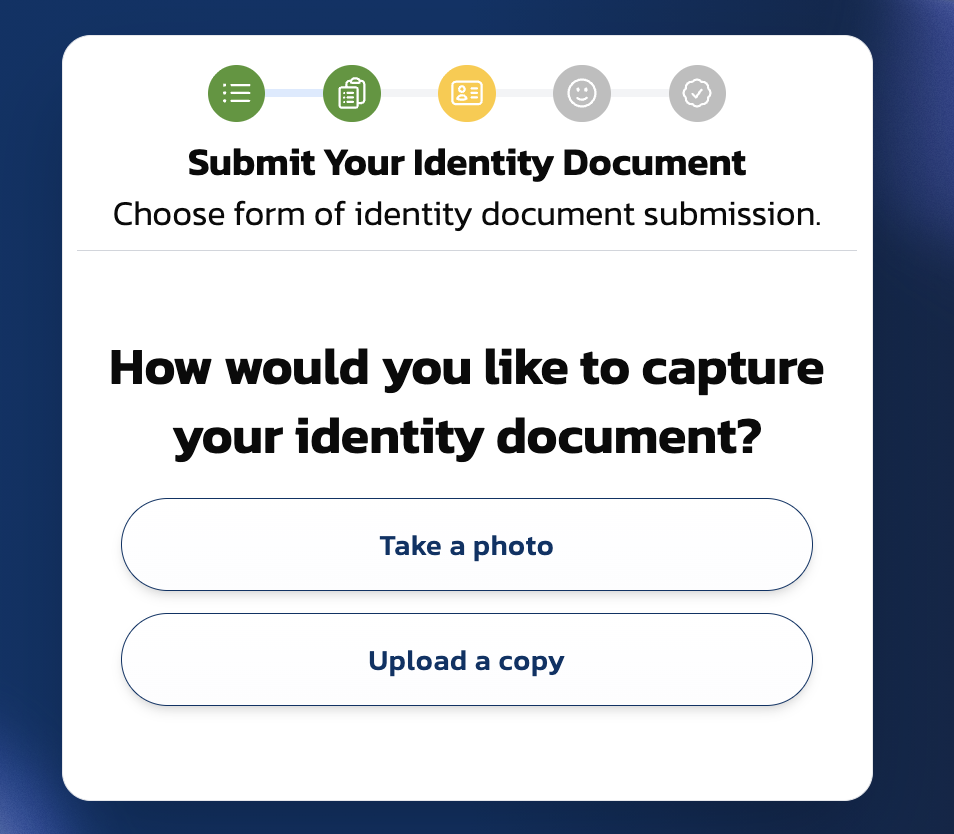
Choose how to capture
Select Take a photo (use your camera) or Upload a copy (select an existing image file).
Select your document type (SA ID only)
If you chose South African ID, select whether you have a Green ID Book or a New ID Card (smart card). This determines whether you need to upload one page or front and back.
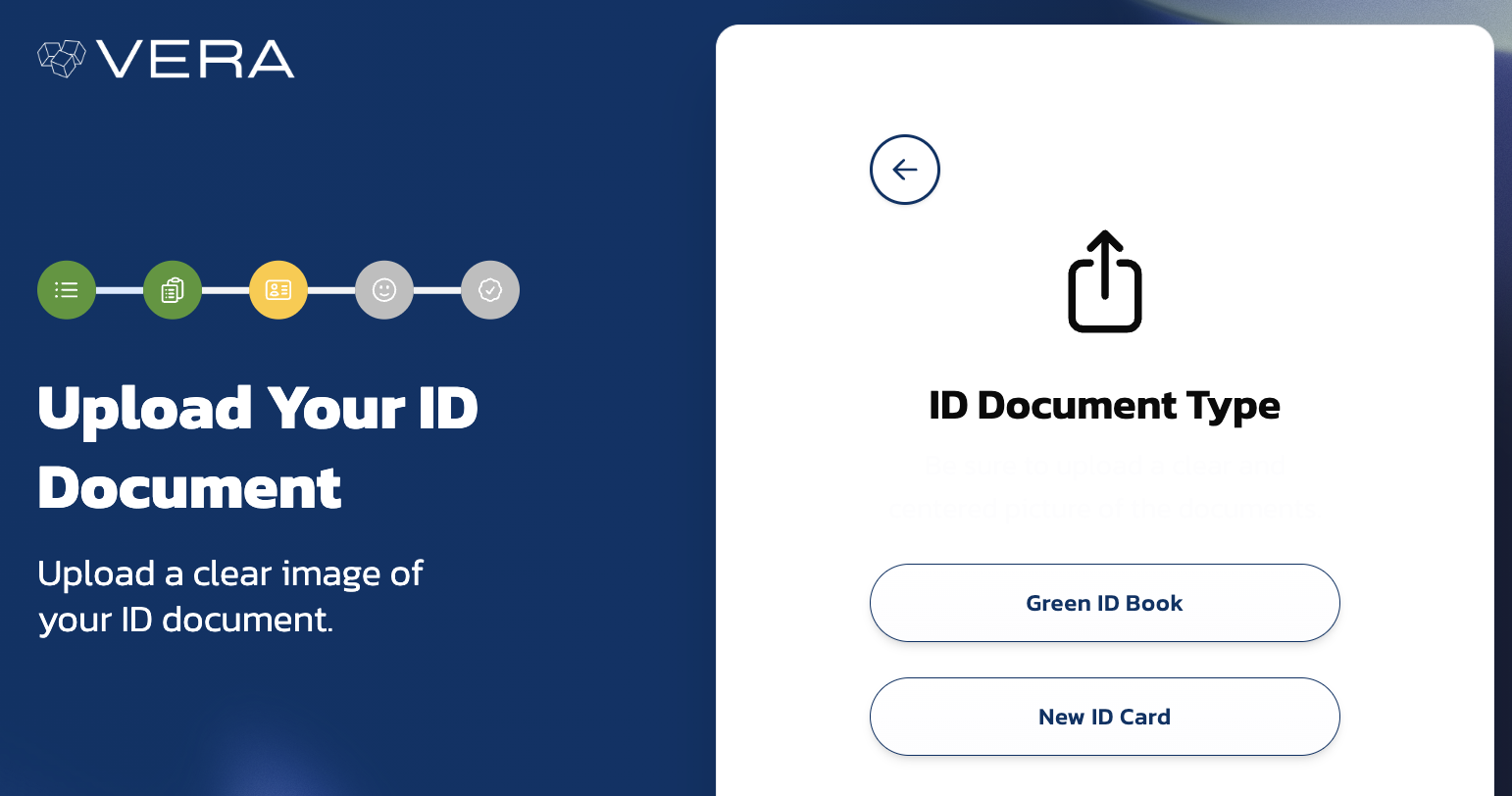
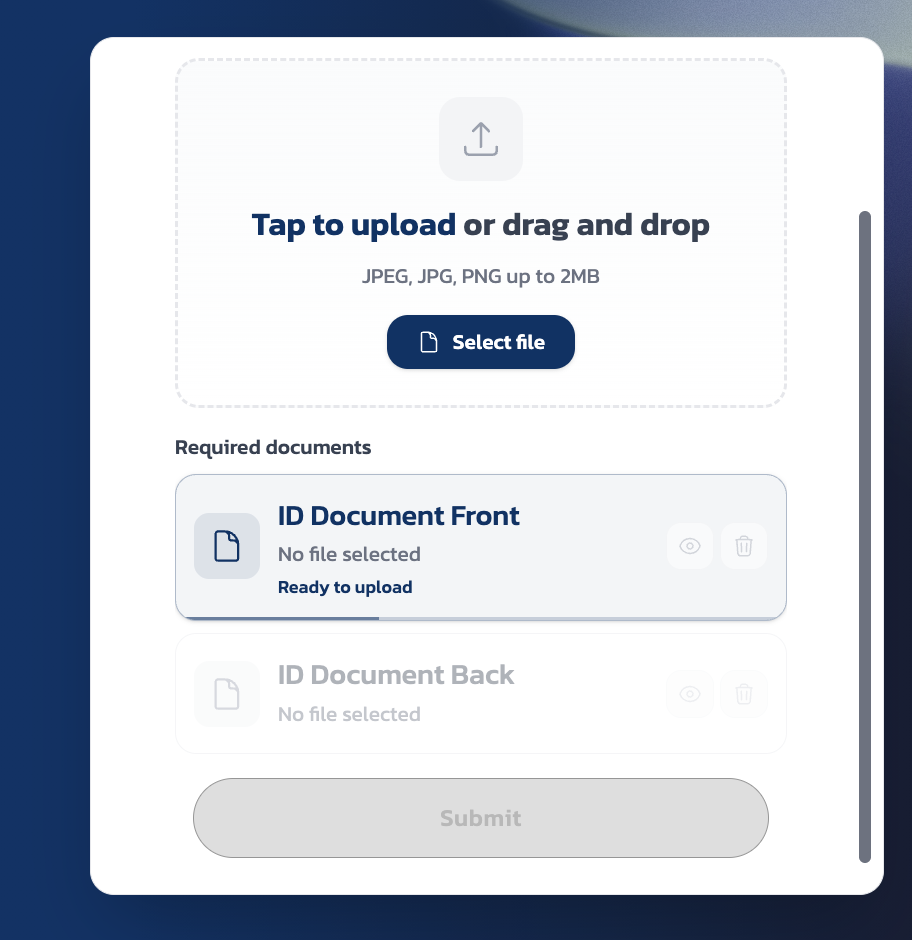
Upload front and back
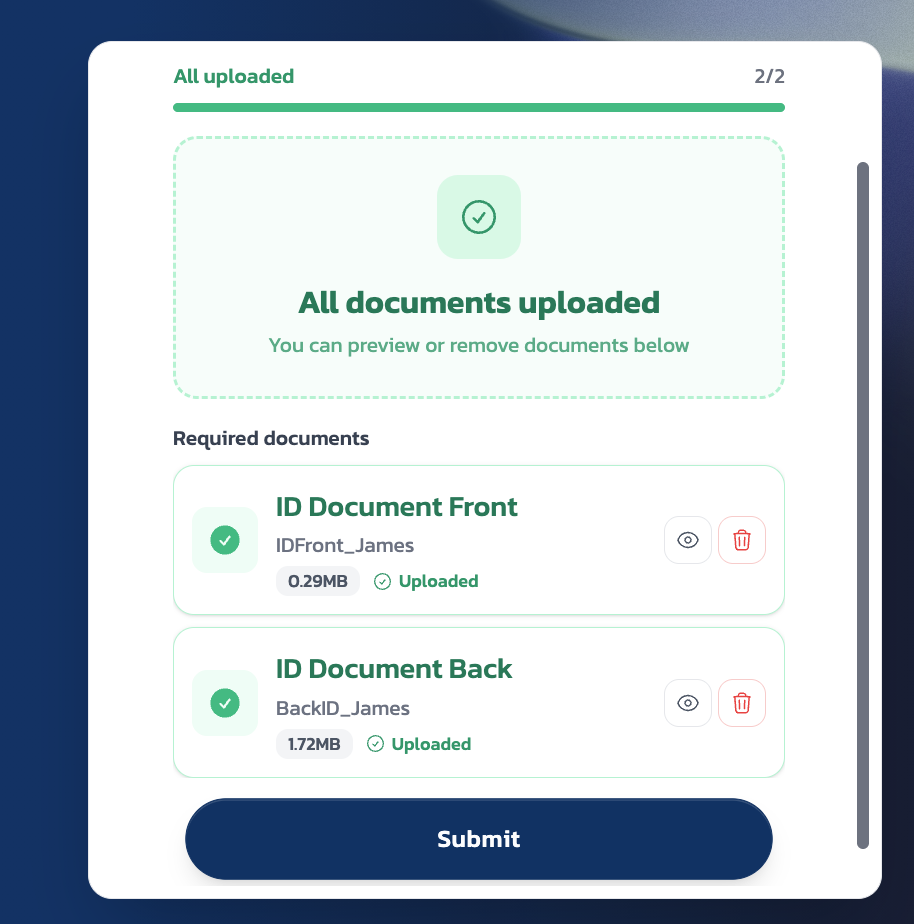
Upload images of the front and back of your ID document. Supported formats are JPEG, JPG, and PNG up to 2MB each. Each upload shows its status. Once both are uploaded, you'll see "All documents uploaded" with green checkmarks.
Complete the liveness check
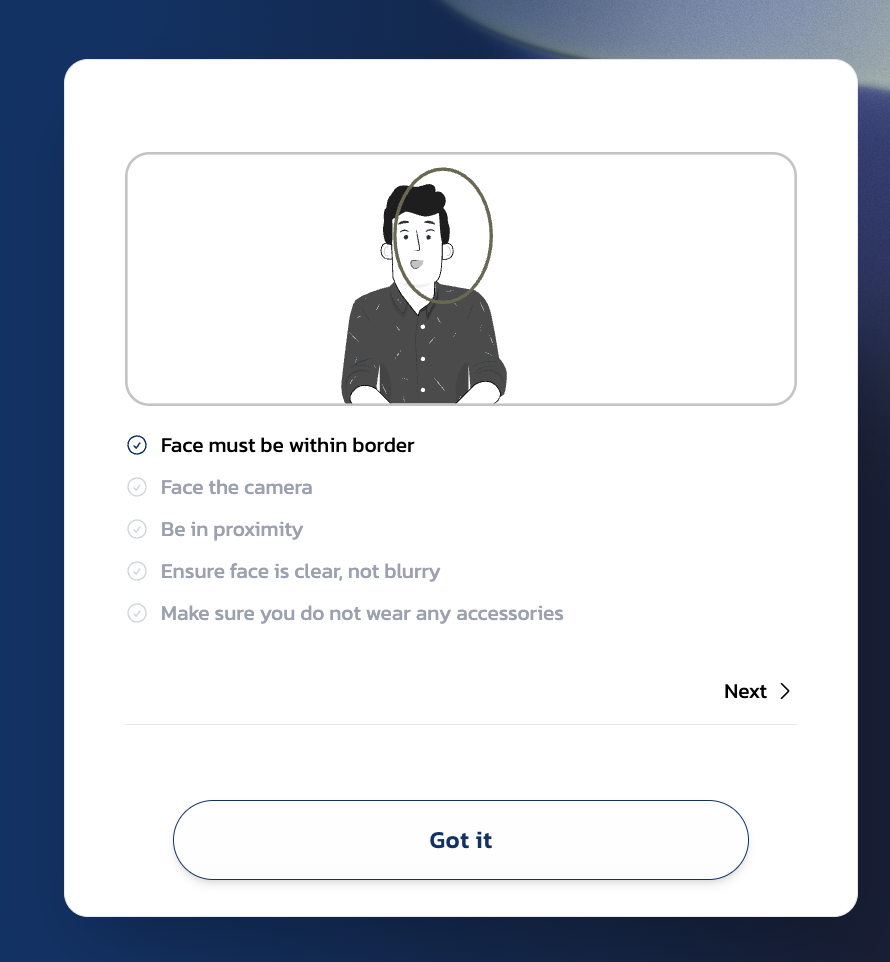
The liveness check confirms you're a real person and matches your face against the photo on your ID document. Follow the on-screen instructions: face must be within the border, face the camera directly, be close enough, ensure your face is clear and not blurry, and remove any accessories (glasses, hats).
Click Got it then follow the prompts to take a selfie.
Wait for results
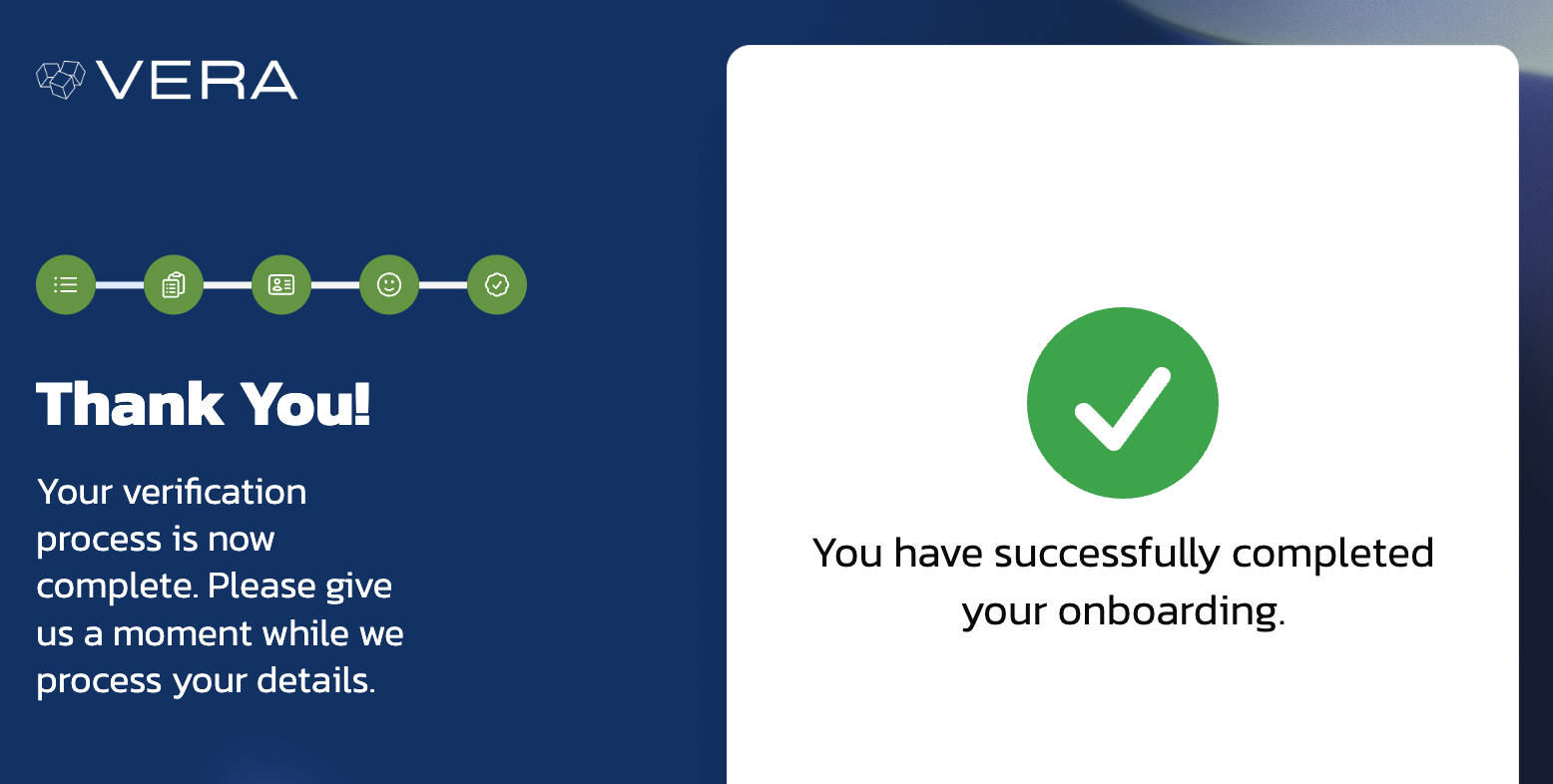
Once the liveness check completes, VERA processes your details. The screen shows "Thank You! Your verification process is now complete. Please give us a moment while we process your details." This typically takes a few seconds.
After verification
Once approved, a Business Identity Credential is issued to your organisation's wallet. The credential contains: Commercial Name, Registration Number, Commercial Type (e.g. Private Company), Commercial Status (e.g. In Business), Registration Date, Tax Number, Country of Registration, Verified Against Source (CONTACTABLE | CIPC), and Source Verification Date.
Your contacts can now request this credential through the Verify button in chat. When they do, they'll see all of these fields and can confirm your business is legitimate. See Verify your connections for how that exchange works.
Completing business verification also verifies your personal identity. You don't need to do personal verification separately — it's included in the business verification flow.
If verification fails
Directorship not found on CIPC. Your ID number isn't listed as a director for that registration number. Check that you've entered both numbers correctly. If you were recently appointed, CIPC records may not have updated yet.
ID document rejected. The image was blurry, partially cropped, or the wrong document type was uploaded. Try again with better lighting and ensure the document fills the frame.
Liveness check failed. Make sure your face is well-lit, centred, and you're not wearing glasses or a hat. Avoid backlighting.
Details don't match. The name on your ID must match the director name on CIPC. If there's a discrepancy (e.g., name change), you may need to update your CIPC records first.
If issues persist, contact VERA Support through the support channel in the left sidebar.