
Managing your contacts
How to view your connections, add private notes, organise contacts into folders, and access quick actions from the contact profile.
Your contacts list
The Contacts page shows everyone you've connected with on VERA. Click Contacts in the left sidebar to open it.
Each contact appears as a card showing their organisation logo (or personal photo), their name, and the representative you're connected with. The sidebar on the left also lists your contacts for quick navigation. Below the contacts list you'll find expandable sections for Folders and Members.
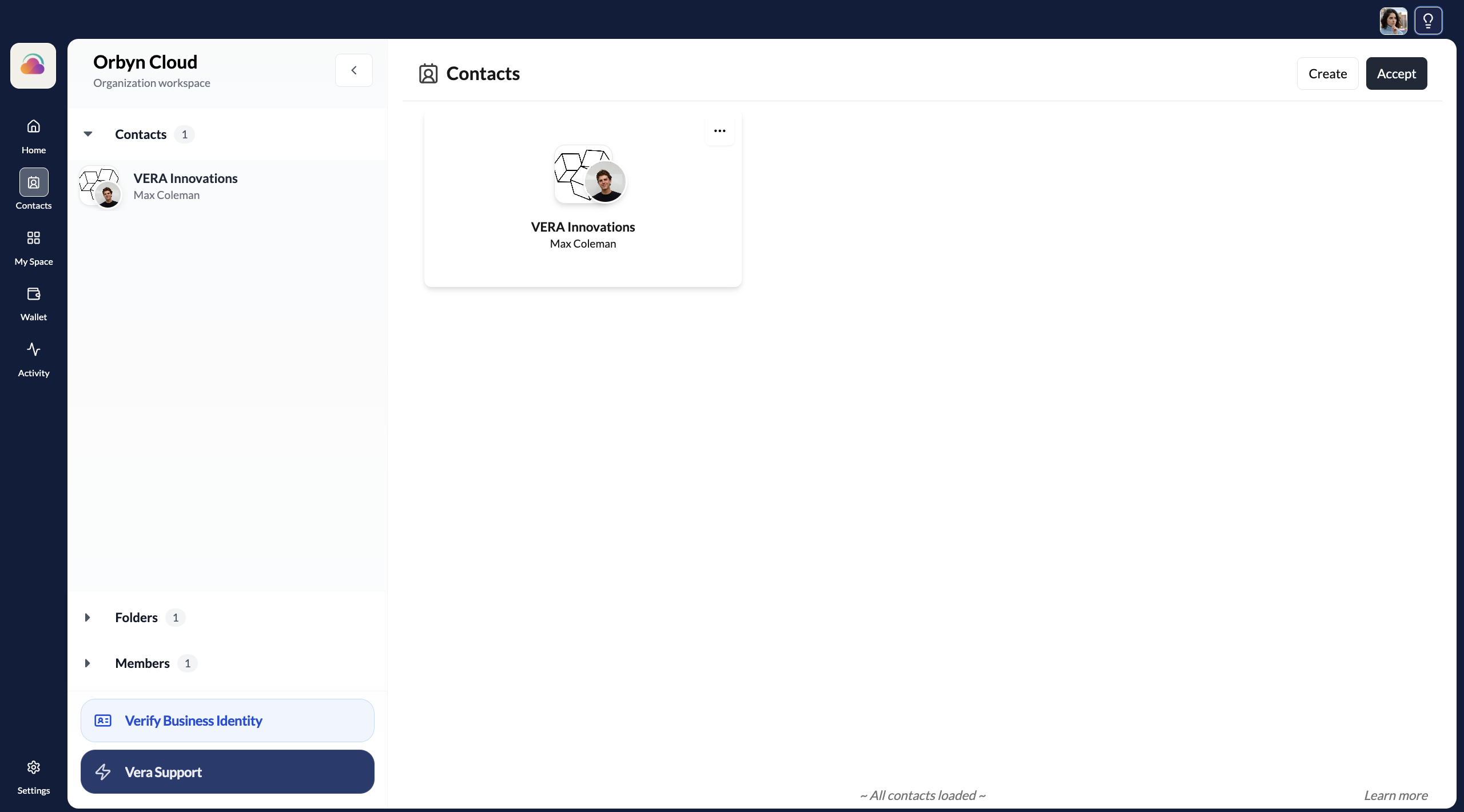
Clicking a contact card opens their chat channel directly. To access the contact's profile and management options, click the three dots (⋯) in the top-right corner of their contact card.
The contact profile
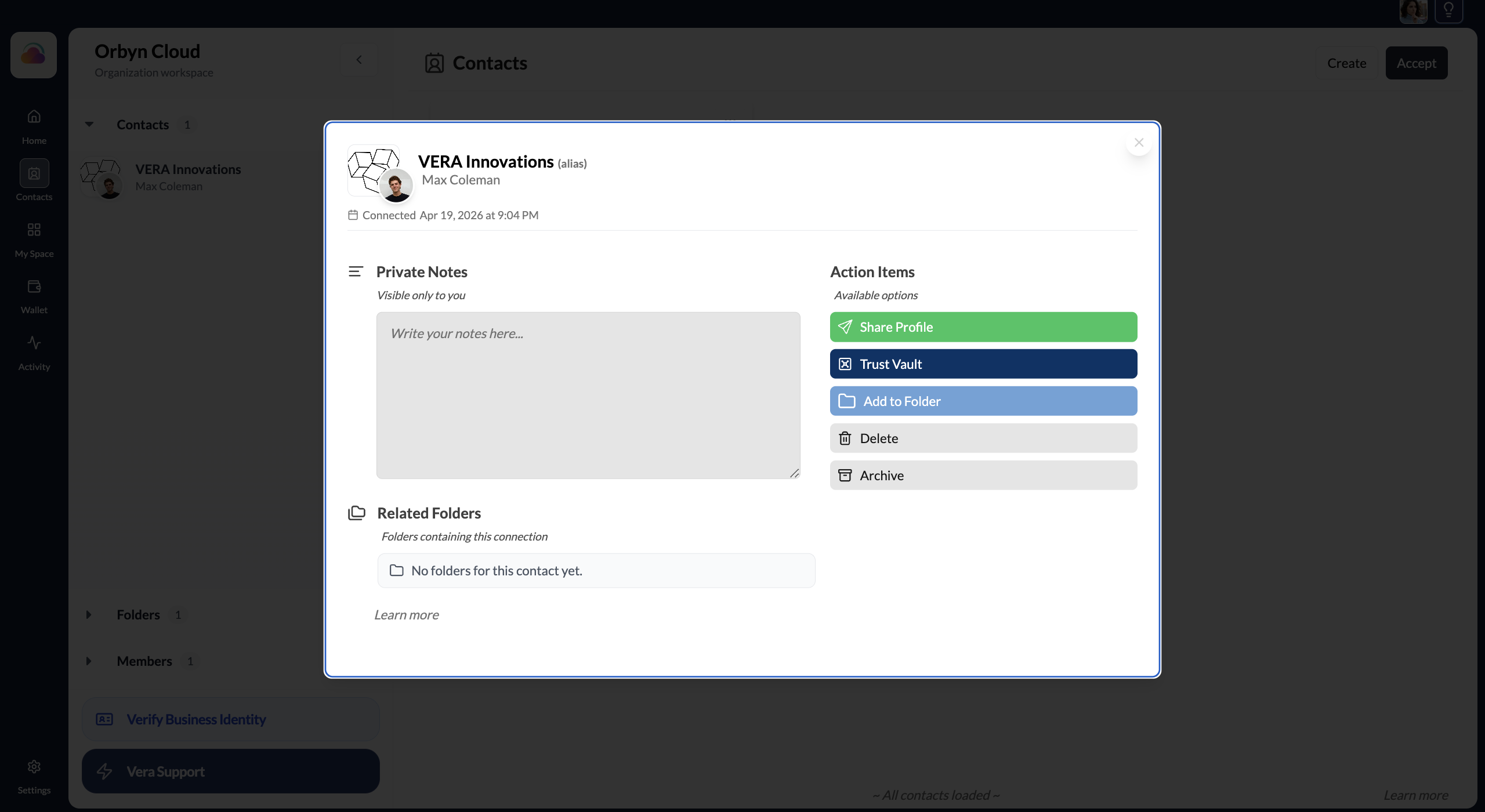
Clicking the three dots on a contact card opens the contact profile modal — your central management view for each connection. It shows the contact's name (the alias you gave them when creating the invitation), the representative's name, and the date you connected.
The modal has three main areas:
Private Notes (left side) — a text field for your own notes about this contact. These are visible only to you and stored in your encrypted vault. Your contact cannot see them. Notes have a 1,000 character limit. Use them for context about the relationship, meeting summaries, follow-up reminders, or internal classification.
Action Items (right side) — quick actions you can take on this contact:
- Share Profile — share this contact's profile with someone else
- Trust Vault — jump directly to the contact's Trust Vault to see their verified credentials
- Add to Folder — organise this contact into one or more folders
- Delete — remove the connection
- Archive — item on the VERA roadmap
Related Folders (bottom) — shows which folders this contact currently belongs to.
Adding notes and tags
Click inside the Private Notes text field to start typing. Notes are saved when you click Save.
When you click into the notes area, a set of tags appears above the text field. These are pre-defined labels you can toggle to categorise the contact: external, internal, client, supplier, partner, strategic, technical, sales, procurement, action-required, to-schedule, and follow-up.
Tags are for your own organisation — your contact can't see them. Combine tags with the free-text notes field to build a lightweight CRM-style view across your contacts.
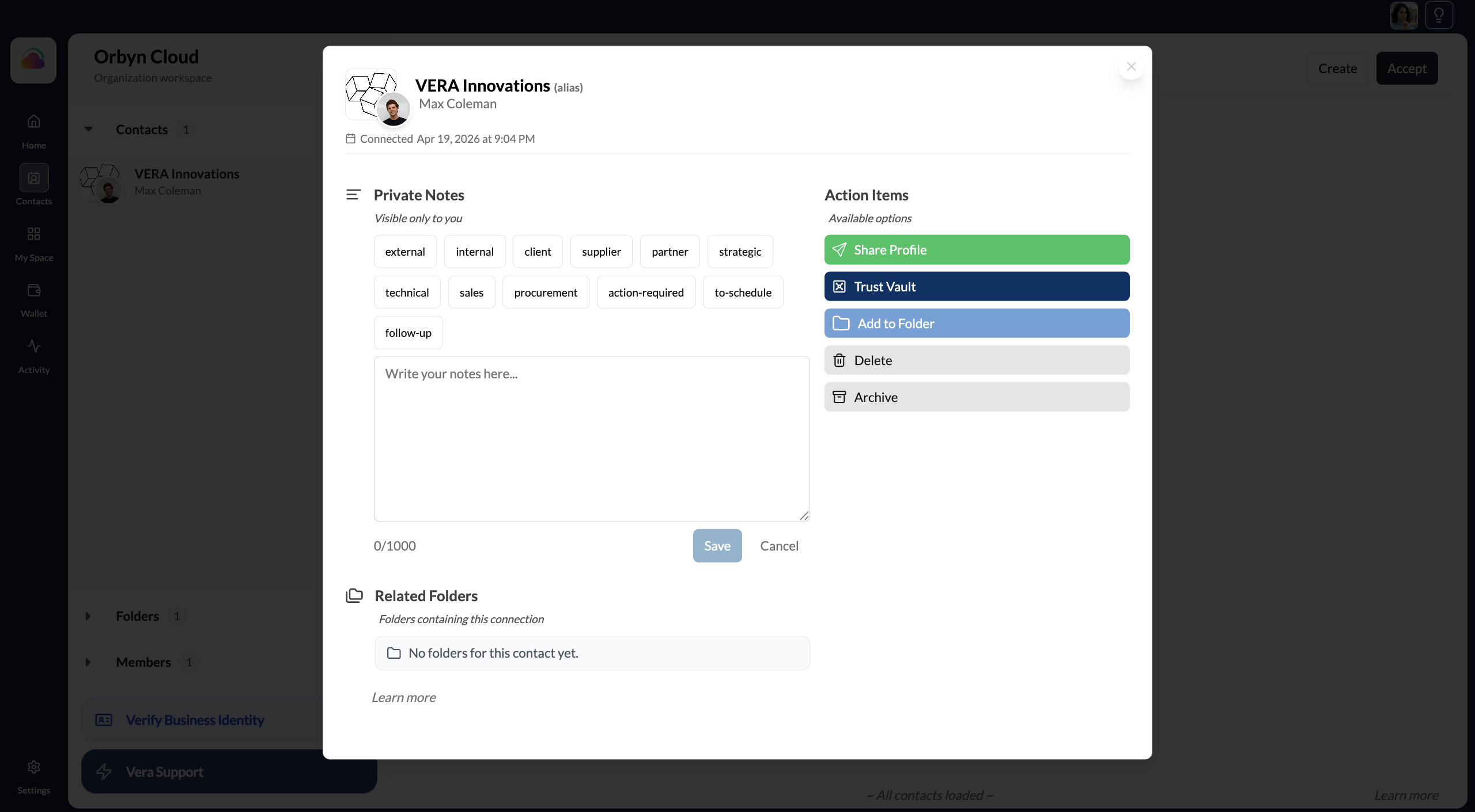
Both notes and tags are stored in your encrypted vault. They're only accessible to you — not visible to the contact, your team members, or VERA.
Organising contacts into folders
Click Add to Folder in the Action Items to assign a contact to one or more folders. Folders are visible in the left sidebar under the "Folders" section and let you group contacts however makes sense for your work — by project, by client type, by status, or any other grouping.
A contact can belong to multiple folders. The "Related Folders" section at the bottom of the contact modal shows which folders the contact currently belongs to.
Business contacts vs individual contacts
Your contacts list shows both businesses and individuals. Business contacts display an organisation logo and their representative's name. Individual contacts show a personal photo.
When you're connected with a business, the connection is to the organisation, not a specific employee. If the organisation changes who represents them, the verified credentials and Trust Vault history stay tied to the organisation. The channel and its history persist regardless of who is currently active on their side.
Removing or archiving a contact
From the contact profile modal:
Delete removes the connection entirely. The secure channel is closed. This doesn't delete messages or credential exchanges that already happened, but no further communication is possible unless you reconnect.
Removing a contact doesn't notify them, but the connection cannot be restored. You would need to create a new invitation and go through the connection process again.